Add Food Items
Food items are the dishes guests see and order. You need at least one category first.
Add a Food Item#
- Go to Menu & Food Items. The Food Items tab is the first one.
- Click Add Food Item.
- Fill in the details and save.
The Basics#
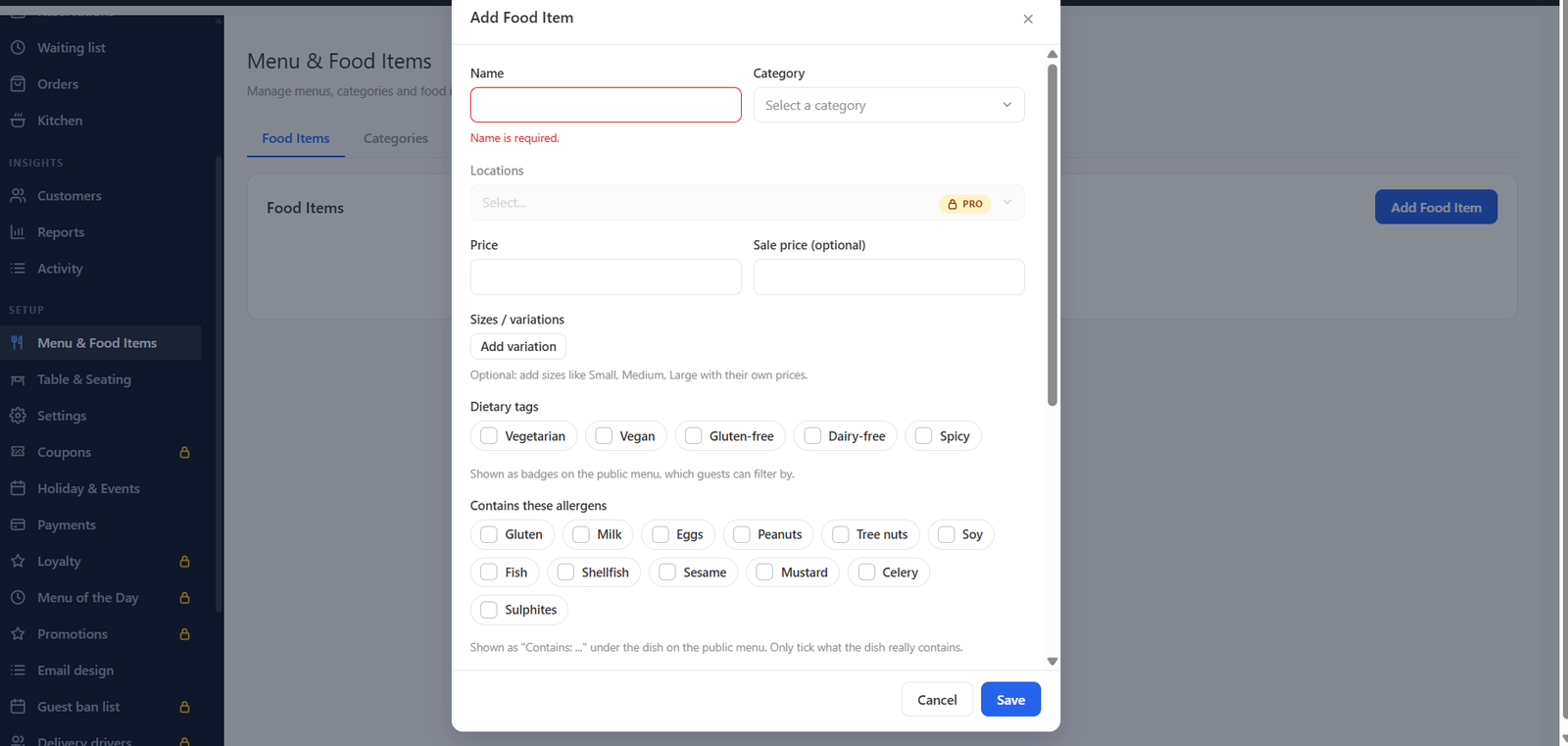
- Name, Category, Description and Image. The photo is shown on the menu and the food grid.
- Price and an optional Sale price. When a sale price is set, the regular price is struck through.
- Sizes / variations. Add sizes like Small and Large, each with its own price. The dish then shows “From” the lowest price.
- Featured dish. Marks the dish as a “Chef’s pick”.
- Dietary tags and allergens appear on the dish for your guests.
Availability#
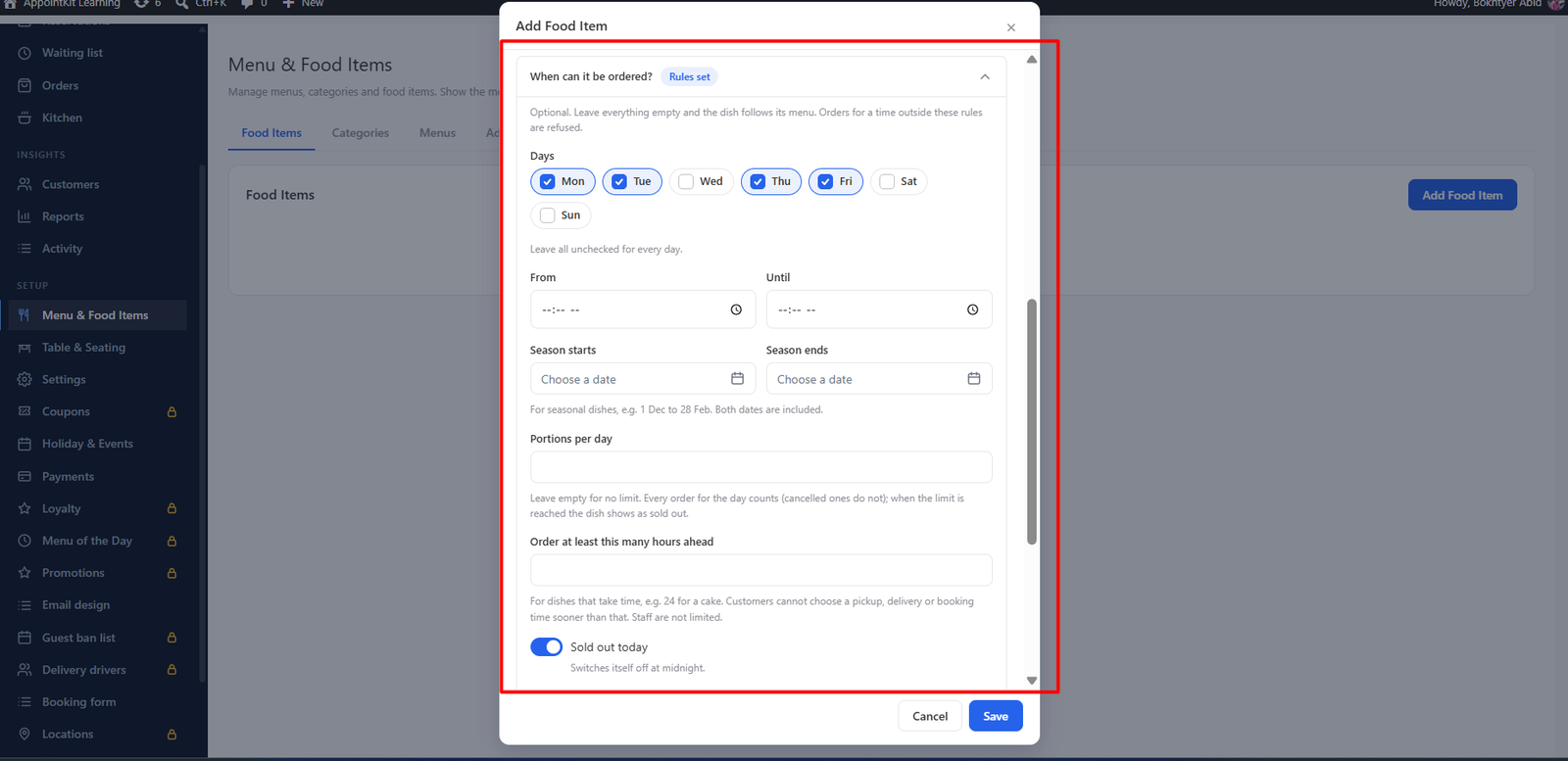
- Available: switch off to show the dish as unavailable.
- Sold out today: stops orders for today only.
- Portions per day: a daily limit. When it is reached the dish shows as sold out for the day.
- Order at least this many hours ahead: for dishes that need preparation time.
- When can it be ordered? Limit a dish to certain days or times, or to a season with Season starts and Season ends.
Add-ons
To offer extras like toppings or sauces, create an add-on group and attach it to the dish.
Was this article helpful?Thanks for your feedback.