Skip to content

AppointKit Learning

  • suite
  • single
  • book

docs

MenuLoom Docs
  • How to Install & System Requirements
  • Admin Dashboard Overview
  • Your First Setup, Step by Step
  • Pro Features Overview
  • Create a Menu
  • Add Categories
  • Add Food Items
  • Add-on Groups
  • Areas and Tables
  • Block Tables for a Private Event
  • Managing Reservations
  • Waiting List
  • Turn On Online Food Ordering
  • Managing Orders
  • The Kitchen Screen
  • General Settings
  • Opening Hours and Closed Dates
  • Booking Rules
  • Email Notifications
  • Customer Accounts
  • Appearance and Colors
  • How to Add MenuLoom to a Page
  • Booking Form Shortcode
  • Menu Shortcode
  • Food Grid Shortcode
  • Customer Account Page
  • Customers
  • Reports
  • Activity Log
  • Coupons and Discounts
  • Holiday and Special Events
  • Multiple Locations
  • Kitchen Stations
  • Delivery Drivers
  • Loyalty Points
  • Menu of the Day
  • Promotions
  • Online Payments
  • Guest Ban List and Reservation Rules
  • Booking Form Builder
  • Email Design
Docs/Website & Shortcodes/Customer Account Page

Customer Account Page

Last updated November 9, 2026 · 1 min read

Turn on customer accounts first, then paste:

[menuloom_account]

Customers can sign in and see their bookings and orders, and change their details.
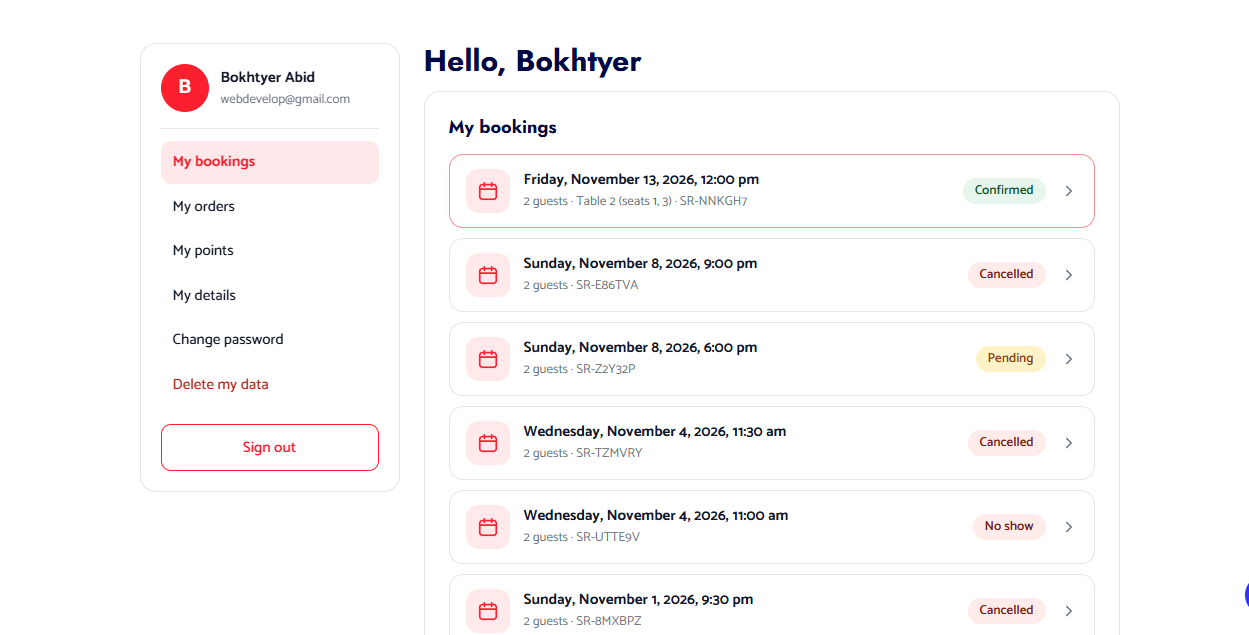
The customer account page
Was this article helpful?Thanks for your feedback.
← PreviousFood Grid ShortcodeNext →Customers

AppointKit Learning

  • Blog
  • About
  • FAQs
  • Authors
  • Events
  • Shop
  • Patterns
  • Themes

Twenty Twenty-Five

Designed with WordPress